This article was prepared with AI assistance using the application source code and existing tutorials. If anything is inaccurate, or you have a clearer method, please suggest a correction through this page's feedback.
Save projects and share cards
Use Save Project to keep an editable file, or Export Share Card to create a PNG with a preview cover. Both restore editing state. Printing still requires a separately generated 3MF and a slice in your slicer.
Checked against the source code available on October 19, 2026. Older projects may not contain local edits; check the import warnings to see what can be restored.
Choose a file type
| File | Control | Purpose |
|---|---|---|
.lumina.json | Save Project | Archive work, move to another device, or continue later |
| PNG share card | Export Share Card | Show the result and give someone the restorable project in the original PNG |
| 3MF or ZIP | Generate / Generate and download | Inspect and print in a slicer; not a substitute for an editable project |
A PNG share card contains source artwork and project data. Screenshots, JPG conversion, platform compression, or resaving can preserve the picture but remove that data. Send the original file or a ZIP when someone needs to continue editing.
Finish the current edit before saving
- Upload artwork, choose a color source, materials, and physical size, then generate a preview.
- Finish recoloring, regional recipes, and selection work in Color Adjustment.
- Wait for pending edits to finish before clicking Save Project or Export Share Card.
- For important work, keep the original artwork, project file, actual material archive or LUT, and final 3MF.
If Lumina says an edit or selection is still being committed, wait or follow the synchronization instruction shown in the interface. A changing preview cannot be exported as a complete editing checkpoint.
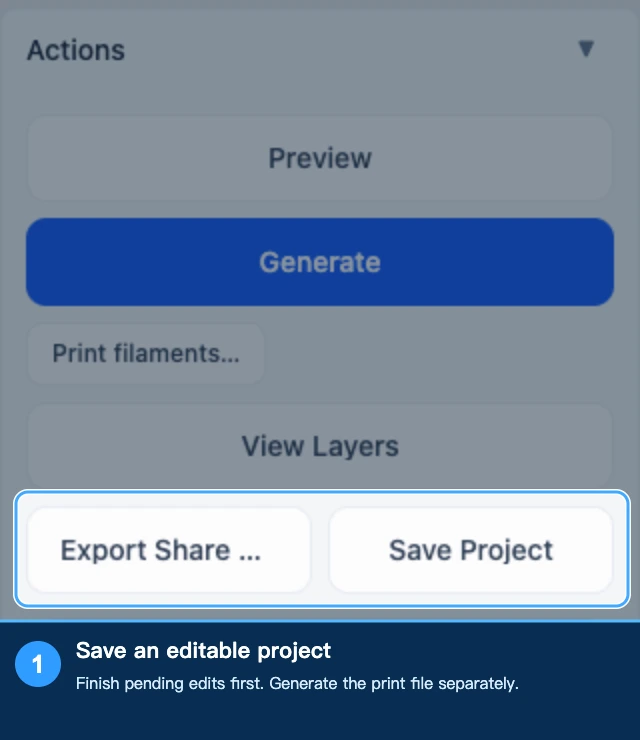
What the current project saves
- Original image or SVG and conversion settings.
- Confirmed global and local recoloring.
- Regional recipes, layer-material stacks, and restorable editing state.
- Current selection.
- Supported printer, filament-preset, and model-feature settings.
Restoring creates a fresh preview. Regional edits are checked against the source artwork and working coordinates before application. They cannot be transferred to another image merely because it has the same dimensions.
Renaming the same source file does not make it different artwork. After replacing, cropping, or rotating the image, save a corresponding new project.
Import and continue editing
- Choose a
.lumina.jsonfile or original PNG share card in the Image Conversion uploader. - Check the artwork, dimensions, color source, and compatibility warnings in the confirmation dialog.
- Confirm restore and wait for the artwork and preview to load.
- Check local recoloring, regional recipes, and selection, then continue editing.
- Save a new project after making changes. Generate a new 3MF when you need to print.
The current version retains confirmed edits when you run Preview again. After undoing or recoloring, check the preview before generation. Import does not recover old download links or temporary models from a previous session.
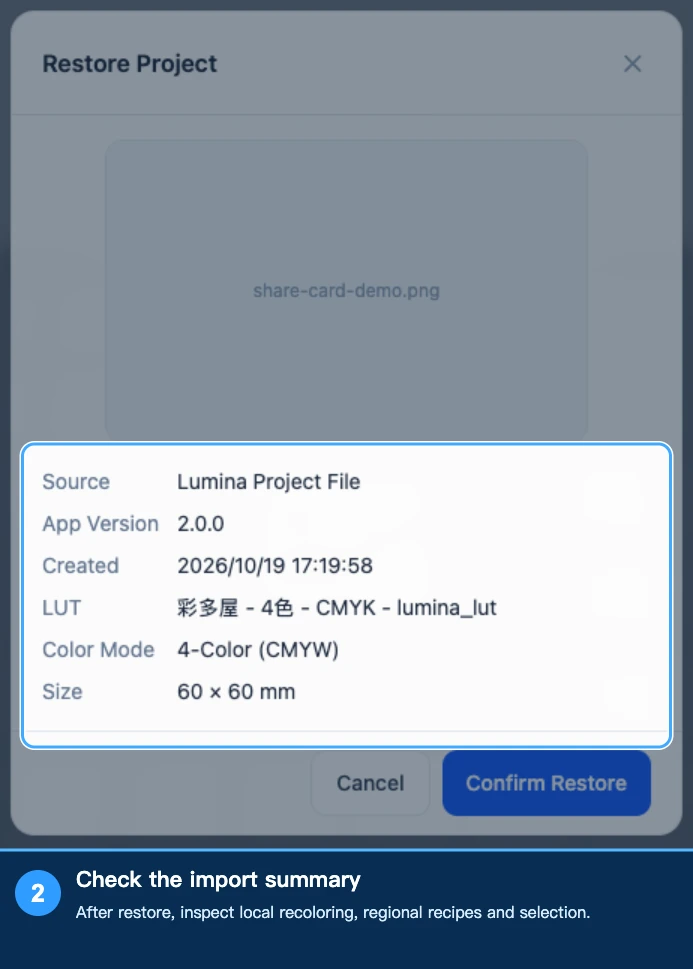
Older files and missing resources
If an older file did not save regional data, the current version cannot reconstruct every edit from its cover. Keep the original and inspect the result when an import warning says regional information is missing.
A project is not a complete material backup. Restore the corresponding LUT, material archive, or native slicer preset if it is missing. Matching names do not prove matching data; reselect the resource when Lumina cannot identify it reliably.
Can JSON be edited manually?
The current version accepts valid parameter edits rather than treating every change as corruption. Parameters must still meet the format and mode requirements. Damaged artwork, editing data, or regions that do not match the source can still prevent restore.
For ordinary size, color, and material changes, import the project, edit in Lumina, and save again. Do not remove warning fields or copy regional data from another project to bypass checks.
Model texture limitation
Model texture needs an additional STL or OBJ and face-selection information, which the recipe cannot currently contain in full. Both export controls are unavailable while it is enabled. Archive the base model, artwork, and final 3MF separately, with a record of the selected face, orientation, and placement.
Check before sharing
Share cards and JSON can contain the original design, not just the visible cover. Check artwork rights, personal information, and unreleased content before sending them. Use an ordinary display image when you only want to show the result.
Related: Quick recolor & similar recipes, Model texture, Slicer and downloads.
Submit feedback
Your feedback is sent privately to the Wiki maintainers and is not displayed publicly on this page.