This article was prepared with AI assistance using the application source code. If anything is inaccurate, or you have a clearer method, please suggest a correction through this page's feedback.
Custom 3MF project templates
A custom template lets you reuse filament and global process settings already configured in your slicer. Save a single-plate project as 3MF, using the same slicer, printer, and nozzle selected in Lumina.
Checked against the source code available on October 19, 2026.
Import and select a template
- Check the printer, nozzle, build plate, filaments, and process settings in your slicer. Save a single-plate 3MF project.
- Open Lumina Settings and find 3MF Project Templates.
- Choose the file, optionally enter a recognizable name, and import it.
- Select the imported template in the list, then return to Image Conversion to generate your model.
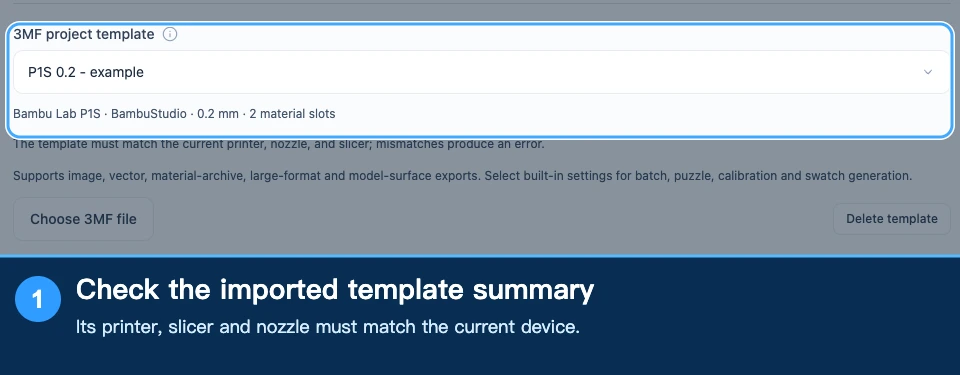
Check the device summary and filament count. A successful import means the file was stored; generation still checks compatibility with the selected device and workflow.
Retained and overridden settings
| Setting | What happens |
|---|---|
| Speed, acceleration, temperature, flow, retraction, cooling | Uses the corresponding template settings |
| Material slots | Retained or narrowed for the generation workflow; check mapping after export |
| Layer height, line width, walls, top/bottom shells, infill | Overridden to meet Lumina's model-generation requirements |
| Wipe tower | Handled according to automatic wipe-tower placement |
| Original objects, per-object settings, modifiers | Not imported into the new artwork |
Template objects and local modifiers do not automatically attach to your new design. Using a template does not mean every slicing setting remains unchanged.
Supported workflows
Templates currently support image, vector, material-archive, large-format tiled, and Model texture exports. Use built-in configurations for batch, puzzle, calibration, and swatch generation.
If Lumina reports a mismatch between the template, printer, nozzle, or slicer, correct that selection. Renaming the template does not resolve a compatibility problem.
Return to a built-in configuration
Select a built-in configuration to stop using the template. Keep the original 3MF before deleting a stored template. If a referenced template is missing, select a valid one or return to a built-in configuration.
After opening the generated file, check the real filaments, build plate, color layers, and wipe tower. Complete a slice before printing.
Related: Device & slicer settings, Slicer output & downloads.
Submit feedback
Your feedback is sent privately to the Wiki maintainers and is not displayed publicly on this page.