This article was prepared with AI assistance based on an analysis of the current Lumina Studio source code, existing Wiki content, and relevant workflows. It has been checked against the current version, but omissions or details that become outdated may remain as the software evolves. If you find an error or have a clearer explanation, example, or suggestion, please leave a comment on this page or propose an edit on GitHub.
Device and Slicer
The device settings control how Lumina Studio prepares the 3MF and which slicer opens it after generation. Select the slicer, printer, and installed nozzle that you actually use; the devices shown in examples are not required choices.
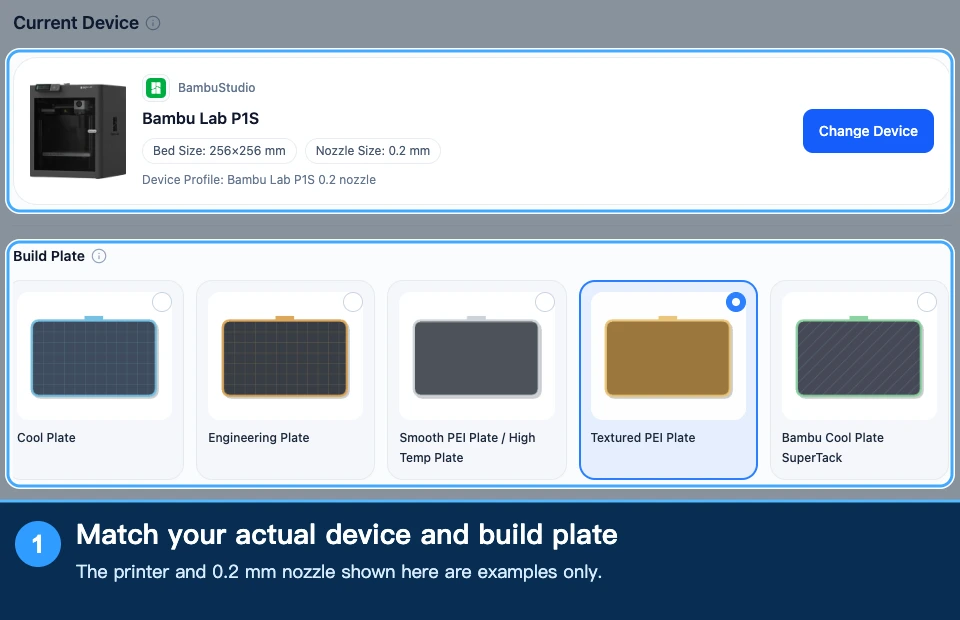
How the settings work together
- Slicer Software determines the compatible printer list and output adapter.
- Printer Model determines the build plate, machine capabilities, and available device profiles.
- Nozzle Size contributes to model resolution, line width, and selected layer-height calculations.
- Device Profile distinguishes hardware or toolhead variants of the same printer.
- Build Plate selects a native plate type supported by the current slicer and printer, to be written into the generated project.
Changing the slicer immediately filters the printer list. If the previous printer, nozzle, or profile is no longer valid, Lumina Studio selects a valid option from the new list instead of retaining an unusable combination.
These changes invalidate previously generated downloads. Preview and generate again to create a 3MF for the new device.
Manual slicer path
On macOS, you can enter a slicer .app path, such as /Applications/Bambu Studio.app. Validate & Save checks the path
before storing it. A validated path takes priority when you choose to open a generated 3MF in the slicer.
The manual path only selects the application used to open the file. It does not convert one slicer's output format into another, so the Slicer Software selection must still match that application.
The installed machine registry supplies the device list. Lumina retries a temporarily empty list. If it stays unavailable, check the local service and configuration loading.
Choose filaments and build plate before generation
As of October 19, 2026, generation checks native filament presets against the build plate. When a material matches multiple native presets, choose the intended candidate. If the plate is incompatible, adjust the plate or material selection before continuing.
Choose the filaments you actually use rather than picking another material just to dismiss a warning. Temperature, flow, and other process settings affect slicing; similar screen colors do not make filament processes interchangeable. Choices are saved separately for devices and nozzles. Projects also record supported filament selections.
Custom templates and wipe tower
To reuse slicer process settings, import a custom 3MF project template. It must match the slicer, printer, and nozzle. A template does not turn one machine's project into a valid configuration for another.
Automatic wipe-tower placement is enabled by default. Disabling it keeps the template's wipe-tower settings for manual placement in the slicer. When enabled, Lumina handles placement for the current device. If safe placement cannot be confirmed, inspect the object, brim, and tower in the slicer.
The current device list is authoritative. QIDI Studio, PrusaSlicer, Flash Studio, and other integrations have their own printer, nozzle, and multicolor-capacity limits. Do not assume that an example model's support extends to every device.
Related pages:
Submit feedback
Your feedback is sent privately to the Wiki maintainers and is not displayed publicly on this page.